This is the first in a series of demos. The admin interface. Dashboards, navigation, menus, sections, context menus, keyboard shortcuts, installation, and making the web browser fullscreen. I provide a link to the demo at the end of the post.
Dashboards
Folders, files, notes, and widgets – visualise activity across your account. Drag items around the screen, resize, group, collaborate, move (or open) items in separate tabs.
You can have as many account dashboards as you want. Same for each project. I'll demonstrate dashboards functionality in the next demo.
Backgrounds
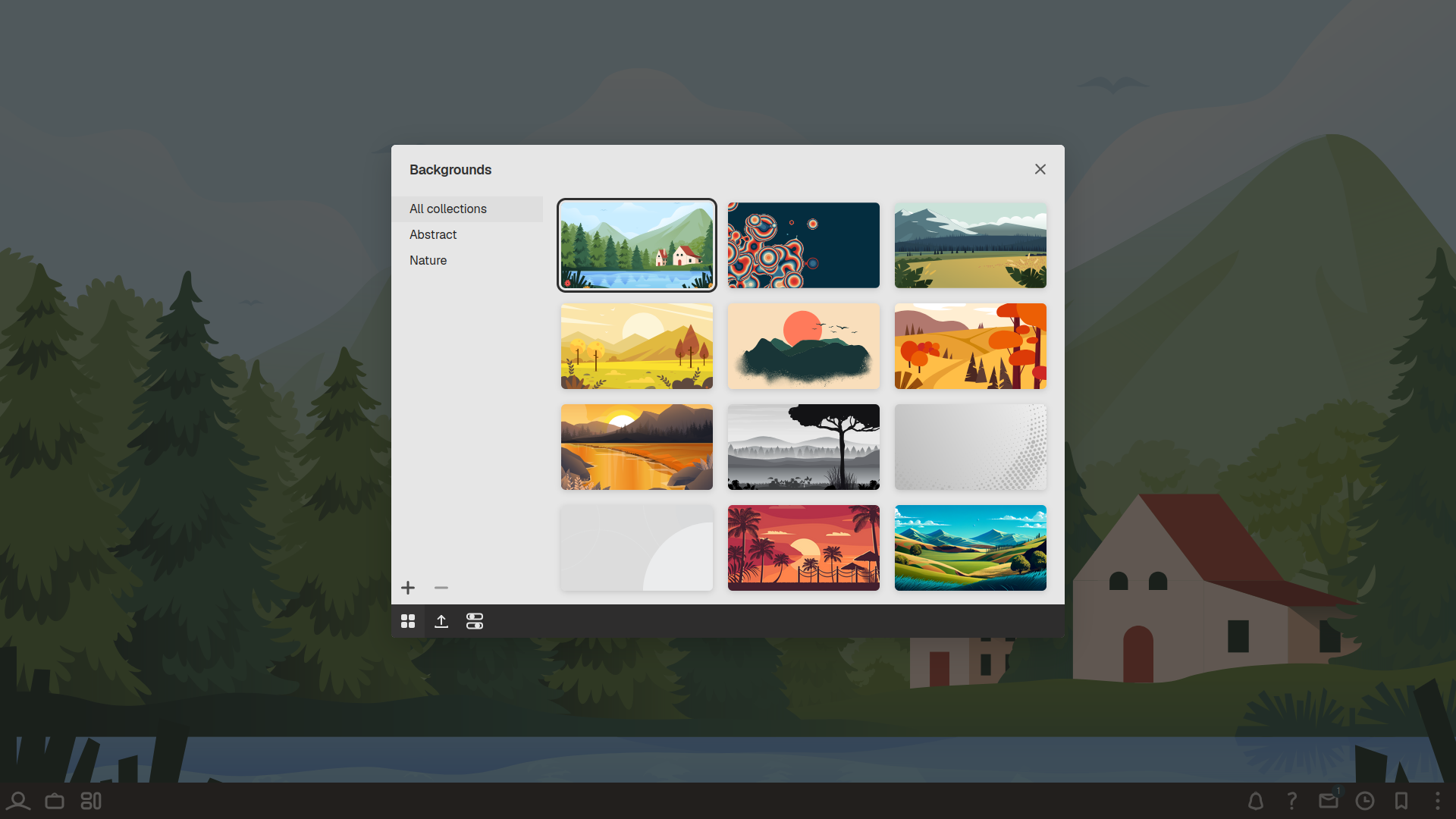
You can personalise each dashboard background. Solid colours, illustrations, photography, gradients, abstract, static, motion... This demo shows a basic example of this:
Navigation panel
You can customise its appearance and position (top, left, right, bottom). Account, project, and dashboard icons on one side, system icons on the other.

Account menu
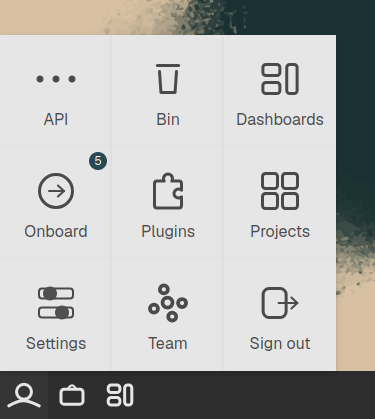
API
Grant external users and clients access to your website or app. Dashboards, logs, metrics, access control, error handling, localisation, rate limiting, usage fees, alerts, keys, monitoring, versioning, and more.
Bin
Contains all your binned items. Search, restore, set rules for auto-deletion...
Dashboards
Folders, notes, files, and widgets. Get a clear overview of account activity.
Onboard
Helps familiarise users with the platform. Keep track of unexplored functionality.
Plugins
Extend or enhance existing features.
Projects
Create and manage projects.
Settings
Access, appearance, automation, domains, keyboard, locale, payment, profile, and security.
Team
Create and manage the admin team.
Project menu
The project menu contains most of the platform's functionality, organised into six sections – Design, Website, Modules, Commerce, Data, and Project.
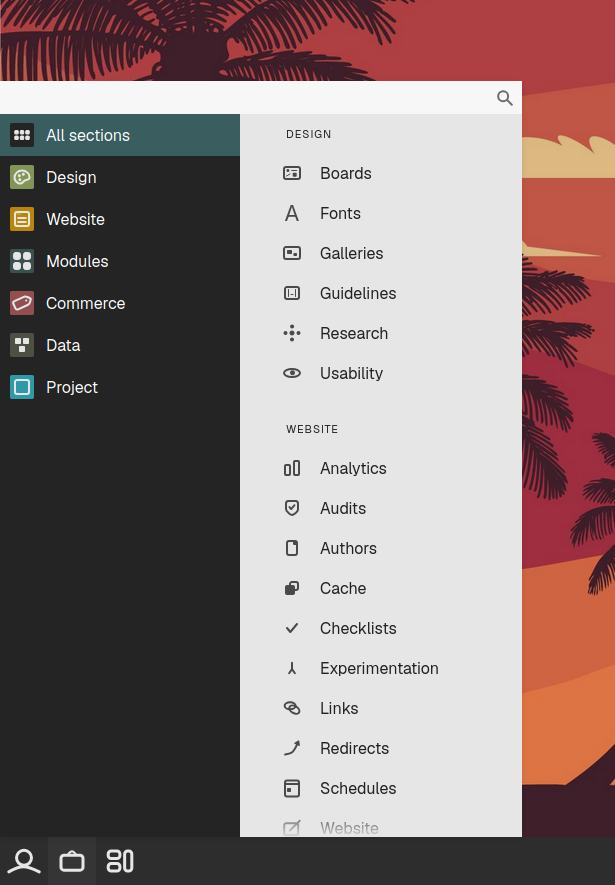
Boards
Mood, style, story, vision, fonts, art, whiteboard, user flow, personas, customer journey maps, sitemaps, colour, sketches, mockups, wireframes...
Fonts
Manage your project's fonts.
Galleries
Collaborative design galleries where teams and clients can curate inspiration from across the web. Annotations, notes, bookmarks, discussion, real-time chat, filters, and search.
Guidelines
A central reference point bringing together your design system, style guide, and content guidelines across your project.
Research
Plan, coordinate, and analyse research to uncover customer needs, validate ideas, and inform decisions.
Usability
Evaluate how well your website/app works through testing, observation, and feedback.
Analytics
See how users and external systems interact with your website or app to identify opportunities for improvement.
Audits
Audit existing websites and apps to understand their current state, and evaluate the quality of what you're building.
Authors
Manage the project's content authors.
Cache
Manage caching across pages/screens, assets, database, and CDN.
Checklists
Track what needs doing across your website/app by category.
Experimentation
Run experiments to optimise experiences and business outcomes.
Links
Manage and optimise your website's links.
Redirects
Manage URL redirects.
Schedules
Manage file publishing schedules across the website.
Website
Build and manage your website or app.
All modules
View and manage all modules.
Accommodation
Inventory, pricing, guest management, reservations, maps, feeds, revenue and channel management...
Account
Configure and customise user account forms.
Ads
Ad management. Rotation, tracking, targeting, design, scheduling...
Audio
Audio file management and player customisation.
Carts
Create and manage shopping cart configurations.
Chat
Create and manage live chat widgets – appearance, behaviour, chatbot...
Checkouts
Create and manage checkout configurations.
Code
Code playground, editor, and snippet management.
Comments
User comment moderation, management, and comment system configuration.
Content
Content creation and management system for a wide range of content types.
Coupons
Coupon management system.
Courses
Course creation and management system.
Digital products
Create and manage digital products.
Documents
Manage documents, spreadsheets, and presentations.
Embeds
Third-party embed management.
Events
Event management system – attendees, tickets, reservations, seat maps, check-in...
Forms
Form creation and management.
Helpdesk
Manage customer conversations. Agents, tickets, groups, routing...
Images
Image file management and customisation.
Jobs
Manage and customise job boards.
Maps
Create and manage maps.
Navigation
Create and manage menus.
Overlays
Overlay management and customisation.
Physical products
Create and manage physical product listings.
Polls
Create, publish, and analyse polls to gather insights and engage your audience.
POS
Point of sale system – inventory, customers, products, customers, staff, orders, payments, reports, integrations...
Q&A
Manage user questions and answers, and widget customisation.
Reviews
User review management and configuration.
Search boxes
Manage and configure search boxes.
Services
Manage project-based and appointment-based services.
Sign-ins
Create and manage sign-in form configurations.
Sitemaps
Create and manage XML and HTML sitemaps.
Slides
Create and manage slides.
Social
Create and manage your own social platform.
Subscriptions
Create and manage product and service subscription plans.
Tables
Create and manage data tables.
Tests
Create and manage quizzes, exams, and other assessments.
Tours
Create and manage tours.
Videos
Video file management and player customisation.
Virtual tours
Create and manage virtual tours.
Widgets
Create, customise, and manage widgets.
Wishlist
Create and manage wishlist configurations
Affiliates
Manage affiliates, commissions, payments, tracking...
Gift cards
Create, customise, and manage digital gift cards.
Greetings cards
Create, customise, and manage digital greetings cards.
Orders
Manage product and service orders.
Shipping
Manage physical product shipping.
Backups
Manage and configure project backups.
Database
Create, manage, and maintain your project database.
Logs
View and audit administrative activity.
Translations
View, manage, and translate content.
API
Manage API access for your project.
Bin
Manage binned items.
Calendar
Organise your project's schedule with a shared calendar.
Dashboards
Folders, notes, files, and widgets. Get an overview of project activity.
Discussion
View and access discussions across the project.
Documents
Create documents, spreadsheets, and presentations.
Create and manage marketing and event-based emails.
Invites
Invite others to join the project.
Licenses
Manage asset licensing.
Notes
View and access notes across the project.
Plugins
Extend or enhance existing features.
Regions
Manage project regions.
Releases
Manage model and property releases.
Roadmaps
Plan and manage project roadmaps.
Search
Search for anything across the project.
Settings
Manage project settings.
Storage
See how storage is used across the project.
Talent
Manage talent assigned to the project.
Tasks
Manage your project's tasks.
Team
Manage the project's team members.
Uploads
View and manage project uploads.
Users
Manage all platform users.
Versions
View and manage all project file versions.
System menu
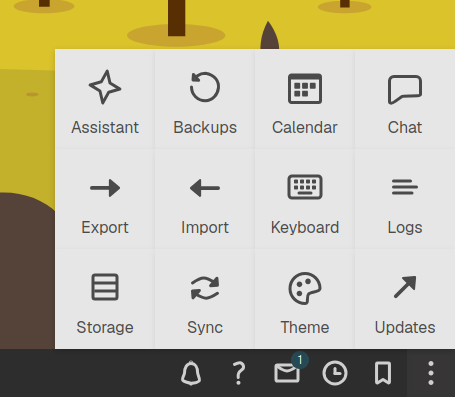
Assistant
Helps you perform tasks, find information, and interact with external systems using natural language. We use classical, deterministic language generation methods.
Backups
Manage and configure account backups.
Calendar
Manage your personal and all your project calendars in one place.
Chat
Chat with your team and clients using text, voice, and video.
Export
Create customised exports.
Import
Import projects and other data.
Keyboard
View and customise keyboard shortcuts for the current screen.
Logs
View and audit administrative activity.
Storage
See how storage is used across the account.
Sync
Keep your data synchronised across devices.
Theme
View and switch themes.
Updates
View, download, and install the latest platform updates.
Keyboard shortcuts
Use our extensive set of default keyboard shortcuts to navigate and perform actions faster. Single-letter shortcuts or two-key letter chords (pressing two keys simultaneously) are defaults. Users can customise any shortcut.
Other methods
Ctrl/⌘ shortcuts can be used only when reliably available. Otherwise, we can make a command accessible through the Command Palette.
Contextual
A single shortcut can perform different actions depending on where you are in the app.
Example shortcuts
The following shortcuts are used in the demo:
Installation
You can install the app natively using our installer files on supported devices. Everything is stored locally and you can work offline. Click the app icon to open the app in full-screen mode.
PWA
For devices that support PWAs, including Android, IOS, and other platforms, you can "install" the app as a Progressive Web App (PWA). "Install", in this case, means adding an app icon to your device's home screen. Clicking the icon opens the app in a full-screen browser window, delivering an app-like experience.
Note: PWA installation is currently only supported in various Chromium-based web browsers – Chrome, Edge, Brave, Opera, and implementation can vary.
On iOS: Share > Add to Home Screen
Launch icon
On supported devices, you can create your own launch icon to open the app full-screen in your preferred browser.
Fullscreen
For the best experience, use the app in fullscreen mode. This happens automatically if you install the app natively or as a PWA. A desktop/app-like experience in the web browser.
All browsers except Safari
Press F11 to make the app display fullscreen – no browser chrome (toolbars, tabs, and the address bar) is displayed.
macOS
Use Ctrl + ⌘ + F, or click the green Full Screen button in the top-left corner of the window.
In the 'View' menu at the top of the screen, ensure 'Always Show Toolbar in Full Screen' is not checked.
Behaviour
Browsers and macOS vary in how they handle users moving the cursor near the top edge of the screen while in fullscreen mode. Chrome shows a 'Close' icon, others show the browser (and OS on macOS) toolbars. This is not ideal.
Some web browsers do not reveal any UI and require you to press F11 again to exit fullscreen mode. This is the preferred behaviour.
Demo
No edit, delete, or create functionality for this demo. Go fullscreen – F11, Ctrl + ⌘ + F (or full screen icon), or install as a PWA.